How to Extract Email Addresses from Outlook PST by Date Range
Learn how to extract email addresses from Outlook PST files by date range. Discover simple ways to filter PST data and extract relevant email addresses quickly.
 vMailSoftware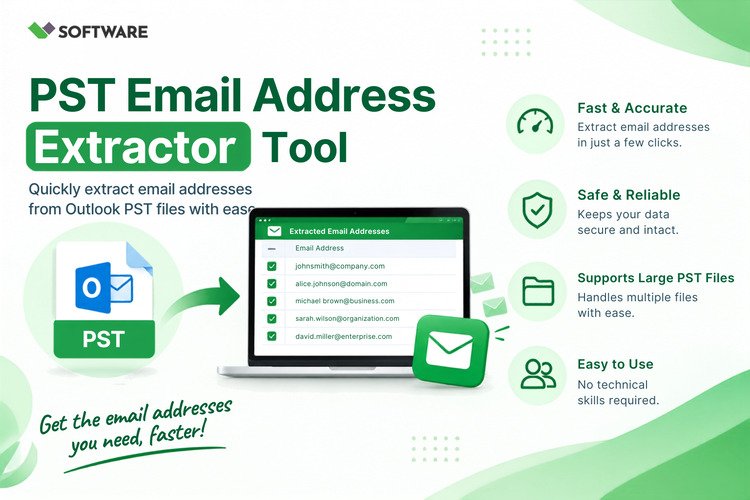
Microsoft Outlook PST files can contain years of communication with customers, colleagues, suppliers, and business partners. Extracting every address from such a large mailbox often produces an unorganized list containing outdated contacts, duplicate entries, automated accounts, and irrelevant recipients. Date-based extraction provides a more focused solution.
A PST Email Address Extractor with date-range filtering can scan messages sent or received during a specified period and collect the relevant email addresses. It allows users to create contact lists associated with a particular project, financial year, campaign, legal matter, or business activity without processing unnecessary mailbox data.
This article explains how date-based email address extraction works, which mailbox fields should be selected, and how to improve the accuracy and security of the final results.
Why Extract Outlook Email Addresses by Date?
A PST, or Personal Storage Table, is a Microsoft Outlook file that stores emails, attachments, contacts, calendars, tasks, and other mailbox information. A single PST file may contain messages collected over many years.
If users extract every address without applying a time filter, the output may include contacts that are no longer active or relevant. Date-range extraction limits the search to a defined period, such as:
- The previous 30 or 90 days
- A specific month or quarter
- A complete financial year
- The duration of a client project
- A legal or compliance review period
- The active period of an employee
- A customer-support reporting cycle
This focused approach reduces processing time and creates a more relevant contact list.
Where Can Email Addresses Be Found in a PST File?
Email addresses may be stored in multiple sections of an Outlook mailbox. Choosing the correct source fields is just as important as defining the date range.
From Field
The From field identifies the sender of an email. Extracting from this field is useful when users want to identify people who contacted the mailbox owner during a specific period.
To Field
The To field contains the primary recipients. Scanning this field in Sent Items can identify individuals or organizations contacted by the mailbox owner.
CC and BCC Fields
CC fields contain copied recipients, while BCC details may be available in sent messages where Outlook stored that information. Extracting from these fields can provide additional contacts connected to a conversation.
A tool cannot reveal hidden recipients when BCC data is not stored in the source message.
Reply-To and Email Headers
The Reply-To field may contain a different address from the visible sender. Message headers can also contain routing and technical addresses, although some of them may not be useful as contacts.
Message Bodies and Signatures
Email addresses may appear in signatures, forwarded conversations, quoted text, and message bodies. Scanning these areas can find additional addresses, but it may also produce more irrelevant or outdated results.
Understanding Date Filters
Before using PST Email Address Extractor Software, users should understand which email date the application uses for filtering.
A tool may filter messages according to:
- Sent date
- Received date
- Creation date
- Last modified date
These dates are not always identical. For example, an email may have been received in January but modified or moved to another folder in March. When extracting customer addresses based on actual communication activity, the sent or received date is generally more relevant than the modification date.
Users should also check whether the software treats the starting and ending dates as inclusive. Time-zone differences can affect messages near midnight or at the boundaries of the selected period. Running a small test can help confirm how the date filter behaves.
Manual Method Using Microsoft Outlook
Outlook’s built-in search can help users locate messages from a particular period. The general procedure is:
- Open the required Outlook mailbox.
- Select a relevant folder, such as Inbox or Sent Items.
- Use Outlook’s search and date-filtering options.
- Choose a predefined period or enter a custom date range.
- Review the matching messages.
- Open each message and copy the required address.
- Record the information in a spreadsheet or contact list.
- Remove duplicate entries manually.
This method does not require third-party software and can work when only a few addresses are needed. However, it becomes inefficient for a large mailbox because every message must be reviewed individually.
Manual extraction may also overlook subfolders, introduce copying errors, or create duplicate entries. Exporting contextual details such as source folders and message dates can require additional work.
How to Extract Email Addresses From PST by Date Range
A dedicated extraction utility offers a more scalable workflow. The exact steps vary by product, but the following process is generally applicable.
Step 1: Create a Backup
Make a secure copy of the original PST file before beginning. Use the copied file for extraction and keep the original unchanged.
Professional software should access PST data in read-only mode, but maintaining a backup remains an essential precaution.
Step 2: Add the PST File
Launch the selected PST Email Address Extractor and add the required Outlook PST file. Some applications allow users to add multiple PST files or automatically locate files associated with an Outlook profile.
Confirm that the correct archive has been selected before proceeding.
Step 3: Preview the Folder Structure
After scanning the PST, the software should display folders such as Inbox, Sent Items, Drafts, Deleted Items, and custom project folders.
Choose only the folders relevant to the extraction. For example, select Inbox to collect senders or Sent Items to identify recipients contacted during the specified period.
Step 4: Select the Address Fields
Choose where the software should search for addresses. Options may include From, To, CC, BCC, Reply-To, headers, signatures, and message bodies.
Restricting the search to structured fields generally produces cleaner results. Message-body extraction should be enabled only when addresses written inside email content are genuinely required.
Step 5: Enter the Date Range
Open the filtering section and specify the starting and ending dates. Confirm whether the program is filtering by sent date, received date, or another timestamp.
If the required period is from January 1 to March 31, ensure both boundary dates are included. When accuracy is critical, test the filter with messages located at the beginning and end of the period.
Step 6: Apply Additional Filters
Date filtering can be combined with other criteria to improve relevance. Depending on the software, users may be able to:
- Include a particular domain
- Exclude the organization’s internal domain
- Remove automated sender addresses
- Process selected mailbox folders
- Search by subject or keyword
- Exclude deleted and junk messages
- Include only emails with attachments
For example, a user could process Inbox messages received during the first quarter while excluding internal company addresses.
Step 7: Remove Duplicate Addresses
The same contact may appear in hundreds of emails within the selected period. Enable deduplication to create a list of unique addresses.
The tool should treat differences in capitalization as the same address. For instance, [email protected] and [email protected] should generally not appear as separate contacts.
Step 8: Preview and Export the Results
Review the extracted list before saving it. Remove malformed addresses, mailing-list accounts, delivery notifications, and other irrelevant entries.
Choose a suitable export format, such as:
- CSV for spreadsheets and CRM platforms
- XLSX for structured Excel-based review
- TXT for a simple address list
- VCF for compatible contact applications
- HTML for browser-based viewing
CSV is commonly preferred because it can store addresses alongside names, message dates, domains, source folders, and other available information.
Features to Look for in Extraction Software
Effective PST Email Address Extractor Software should offer more than basic pattern matching. Important features include:
- Custom date-range filtering
- Selection of sent or received dates
- Extraction from multiple email fields
- Selective folder processing
- Domain-based inclusion and exclusion
- Automatic duplicate removal
- Preview before saving
- Support for large PST files
- Batch extraction from multiple archives
- ANSI and Unicode PST compatibility
- Flexible export formats
- Detailed processing reports
The software should also clearly explain whether Outlook installation is required and whether it can process orphaned PST files.
How to Improve Extraction Accuracy
To obtain useful results, define the objective before starting. If the goal is to find recent incoming customers, scan the From field in Inbox folders and select the required received-date range. If the objective is to identify vendors contacted during a project, scan the To and CC fields in Sent Items.
Avoid extracting from every field unless necessary. Message bodies and quoted conversations can contain historical addresses outside the intended period because an old email may be quoted inside a newer message.
After export, review the results for:
- No-reply and automated accounts
- Internal technical addresses
- Distribution lists
- Obsolete contacts
- Incorrectly formatted entries
- Addresses extracted from forwarded text
- Shared mailboxes and aliases
The date of the containing message does not necessarily prove that every address mentioned inside its body was active during that period.
Privacy and Data Security
PST files and extracted contact lists may contain confidential or personal information. Users should process them only with authorization and follow applicable privacy regulations and organizational policies.
For sensitive data, local desktop processing may offer greater control than uploading the PST file to an unknown web service. Store the exported list securely, restrict access, and delete temporary files after completing the approved task.
Extracted addresses should not be used for unsolicited marketing. Their presence in a mailbox does not automatically establish consent for promotional communication.
Conclusion
Date-based extraction helps users extract email addresses from PST files without creating an unnecessarily large and outdated contact list. By selecting the correct mailbox folders, address fields, and sent or received dates, users can identify contacts connected to a particular period or activity.
A dependable PST Email Address Extractor can automate this process, remove duplicates, apply domain filters, and export structured results. Before selecting PST Email Address Extractor Software, users should confirm its date-filtering behavior, supported PST formats, security practices, and export options. With careful configuration and manual verification, date-range extraction can make Outlook contact management faster, more relevant, and more accurate.