How to Convert ICS to iCal File? 5 Top Ways
Learn how to convert ICS to iCal using manual methods, iCloud, and automated tools. Step-by-step guide for seamless Apple Calendar migration.
 mishti bakshi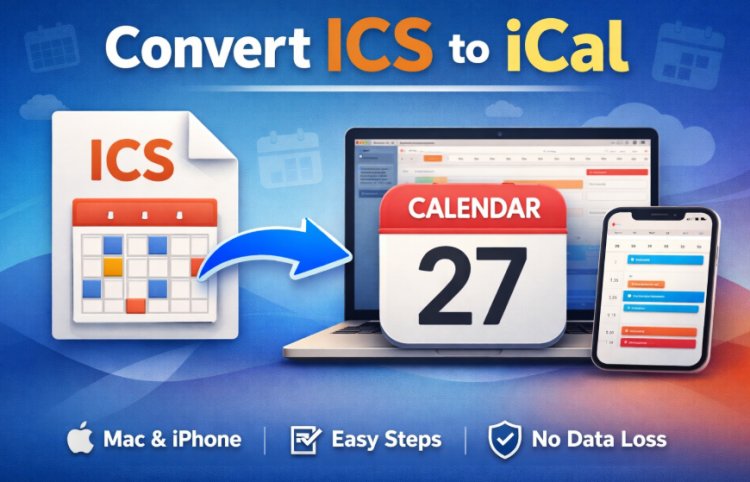
Calendars are the backbone of modern scheduling, whether for business meetings, academic plans, or personal events. However, compatibility issues between calendar platforms often require users to convert ICS to iCal for smooth data access across devices and applications.
While ICS (iCalendar file format) is widely supported, certain platforms, especially Apple ecosystems, work more efficiently when users want to transform an iCalendar file to ical or properly import the data.
This in-depth guide explains what these formats are, why conversion may be needed, and the most effective manual and automated methods to export ICS to iCal without losing important event details.
Understanding of ICS and iCal Formats
Before attempting any conversion, it’s essential to understand the difference between these two terms.
- ICS (iCalendar file): A universal calendar file format used by Google Calendar, Microsoft Outlook, Yahoo Calendar, and many other applications.
- iCal (Apple Calendar): Apple’s calendar application (formerly called iCal, now Apple Calendar) that uses ICS files but may require specific import handling.
Technically, iCal already uses the ICS standard. However, users still search for ways to convert ICS to iCal because they need to import ICS files into Apple Calendar, sync them properly, or adapt them for macOS/iOS workflows.
Secondary use cases also include:
- Export ICS or iCal for Apple devices.
- Moving schedules from Windows to macOS.
- Migrating corporate calendars to personal Apple accounts
- Sharing events across ecosystems.
Why Do You Need to Convert ICS to iCal Format?
Here are the most common scenarios where users must export ICS to iCal:
- Switching to Apple Devices: When moving from Windows or Android to macOS or iPhone, users often carry calendar backups in ICS format.
- Import Errors in Apple Calendar: Some ICS files contain formatting that Apple Calendar cannot interpret correctly, requiring cleanup or conversion.
- Bulk Event Migration: Organizations migrating to Apple infrastructure may need reliable ways to handle large ICS archives.
- Offline Calendar Backup Restoration: Users restoring archived events must ensure compatibility with Apple Calendar.
Method 1: Direct Import into Apple Calendar
Since Apple Calendar supports ICS files natively, the simplest way to convert ICS to iCal is by importing the file directly. The steps to use this method
- Open Apple Calendar on your Mac
- Click File → Import
- Locate the ICS file on your system
- Select the destination calendar
- Confirm the import
Once imported, your events appear inside Apple Calendar, effectively completing the ICS to iCal conversion process.
Pros:
- Free and built-in.
- Quick for small files.
- No third-party software required.
Cons:
- Not ideal for corrupted or large files.
- May lose attachments or custom fields.
- No batch processing.
Method 2: Convert ICS to iCal through Import ICS to iCloud Calendar
Another reliable way to export ICS to iCal is through iCloud, especially if you want synchronization across Apple devices. The steps are given below:
- Visit iCloud.com and sign in
- Open the Calendar web app
- Click the settings icon
- Choose Import Calendar
- Upload the ICS file
After import, the events automatically sync to your iPhone, iPad, and Mac.
Advantages:
- Cloud-based access.
- Syncs across devices instantly.
- Useful for remote workflows.
Limitations:
- Requires an Apple ID.
- File size limits may apply.
- Needs internet connectivity.
Method 3: Import ICS into iCal Using Email Clients
Some users successfully convert ICS to iCal by sending the ICS file to themselves and opening it on an Apple device. The steps are:
- Attach the ICS file to an email
- Open the email on your iPhone or Mac
- Tap the attachment
- Choose “Add All Events”
This approach is particularly helpful for mobile-only users.
Method 4: Convert ICS to iCal Format Via Editing ICS Files for Compatibility
Occasionally, formatting issues prevent successful import. In such cases, manually editing the ICS file can help. The steps are:
- Open the ICS file in a text editor
- Check for malformed entries
- Remove unsupported fields
- Save the file
- Re-import into Apple Calendar
While technical, this method allows advanced users to troubleshoot import failures during the export ICS to iCal process.
Method 5: How to Convert ICS to iCal File? Professional Solution
Manual solutions work for basic needs, but large-scale or business migrations require automation. A specialized tool can reliably export ICS format to iCal while preserving event integrity. One effective solution is the SysTools ICS to iCal Converter tool. The interface of the tool is user-friendly and simple for both technical and non - technical users. This professional software offers advantages such as:
- Batch conversion of multiple files
- Preservation of event details
- Support for large datasets
- Error-free migration
- Advanced filtering options
Working Steps of this Software
- Install and launch the software
- Add single or multiple ICS files
- Preview calendar events
- Choose output format or destination
- Export directly for Apple Calendar compatibility
This automated approach is the most efficient way to convert ICS to iCal for enterprise users, IT teams, or anyone dealing with complex calendar data.
Common Issues During ICS to iCal Conversion
Even simple conversions can encounter problems. Here’s how to resolve them:
- Duplicate Events:
Occurs when importing the same file multiple times.
Solution: Remove duplicates manually or use filtering tools.
- Time Zone Errors:
Events appear at incorrect times.
Solution: Ensure the ICS file contains correct TZID settings.
- Missing Recurring Events:
Complex recurrence rules may not import correctly.
Solution: Use automated conversion software.
- Large File Failures:
Apple Calendar may struggle with massive datasets.
Solution: Split files or use professional tools.
Final Thoughts
Although ICS and iCal are closely related, real-world compatibility challenges often require users to convert ICS to iCal for reliable access within Apple’s ecosystem. Whether you choose a manual approach, such as direct import or iCloud sync, or a professional automated solution. The right method depends on your data size, technical comfort, and accuracy requirements.
By understanding these methods and best practices, you can confidently manage calendar migrations and ensure that no important events are lost in the process.