Step-by-Step Guide to Converting Your Logo into a PES File
Follow our step-by-step guide to seamlessly convert your logo into a PES embroidery file. Learn the professional process for flawless results on your Brother machine.
 AbsoluteDigitizing1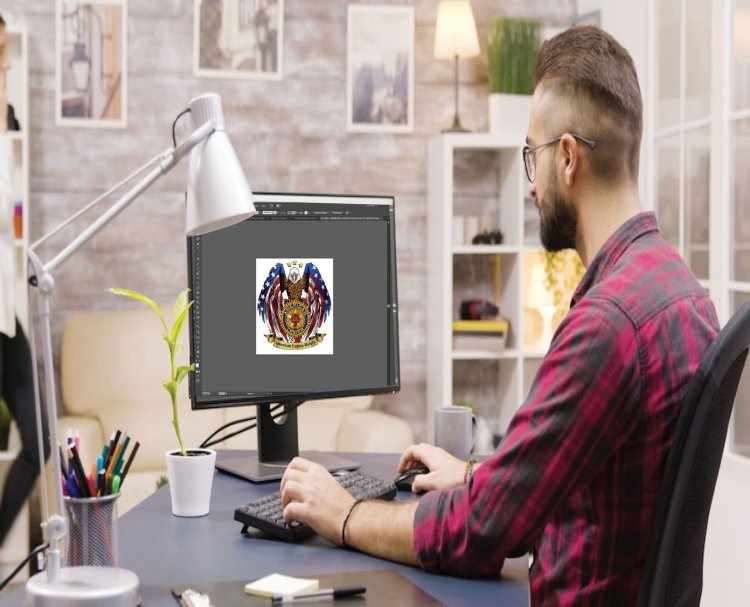
Introduction
You have a logo that represents your brand, and you’re ready to see it stitched onto a hat, polo, or bag with the professional touch of embroidery. You know your Brother machine needs a PES file, but your logo is a JPEG, PNG, or AI file. This is a common starting point, and the path forward doesn’t have to be mysterious or frustrating. Learning how to Convert Logo To PES Embroidery File is the essential bridge between your digital artwork and a perfect stitch. This isn't a simple "Save As" function; it's a step-by-step craft called digitizing. Whether you plan to do it yourself or understand the process to better work with a professional, this guide will walk you through each stage—from preparing your artwork to testing the final file—so you can approach your project with clarity and confidence.
What You're Really Doing: From Art to Instructions
Before we dive into the steps, let's clarify the goal. You are not just changing a file extension. You are translating your two-dimensional logo into a three-dimensional set of machine commands.
Your original logo file is a static image. A PES file is a dynamic recipe. It contains thousands of lines of code that tell your Brother embroidery machine:
-
The precise path of the needle.
-
The type of stitch to use in every single section.
-
The order to sew colors and layers.
-
How to stabilize the fabric with hidden stitches.
-
Where to trim the thread.
Getting this translation right is the difference between a crisp, flat logo and a puckered, disappointing mess. Follow these steps in order to build your file correctly.
Step 1: Gather Your Tools & Prepare Your Artwork
You can't build a house without tools. For digitizing, you need:
Essential Tools:
-
Digitizing Software: This is non-negotiable. You cannot use Photoshop or Canva. You need software like Embrilliance, Hatch Embroidery, or Wilcom. Many offer free trials, which are perfect for following this guide.
-
A Good Computer: The software can be demanding. Ensure your computer has enough processing power and RAM to run it smoothly.
-
Your Logo File: Start simple. Choose a logo with clear shapes, solid colors, and minimal tiny details for your first attempt.
Artwork Preparation (The Most Important First Step):
Open your logo in any basic image editor (even a free online one).
-
Simplify: Remove any complex backgrounds or unnecessary tiny elements.
-
Increase Contrast: Make the edges between colors as sharp and clear as possible.
-
Convert to Grayscale: For your first project, focus on mastering the stitch structure, not color management. Work in black and white.
-
Save as a PNG: This format handles clean edges better than a JPEG.
Pro Tip: If you have a vector file (.AI, .EPS, .SVG), you are already ahead. Use it! Vector files are a digitizer's best friend.
Step 2: Software Setup & Initial Trace
Open your digitizing software and create a new file.
-
Set Your Canvas: Input your machine's hoop size (e.g., 4" x 4") to define your workspace.
-
Import Your Logo: Place your prepared PNG or vector file onto the digital canvas.
-
Manual Tracing - DO NOT SKIP THIS: Resist the "Auto-Digitize" button. It will create a poor-quality file. Instead, use the software's drawing tools (like the Bezier or Point tool) to manually create an outline around every distinct shape in your logo.
-
Work from Back to Front: Trace background elements first, then overlay foreground elements. This builds the proper layering order.
-
Create Separate Objects: Each shape you trace should become its own object in the software. Think of these as the building blocks of your design.
-
Step 3: Assign Stitch Types & Properties
Now, give life to those outlined shapes. This is where you decide how each part will be stitched.
-
Select an Object: Click on one of your outlined shapes.
-
Assign a Stitch Type:
-
For Large, Solid Areas (like a background): Choose a Fill Stitch (also called Tatami or Ceding stitch). In the properties panel, set a moderate Density—start with 4.0 to 5.0 stitches per inch (SPI) for apparel.
-
For Text, Borders, and Narrow Elements: Choose a Satin Stitch (or Column stitch). Set the Width and adjust the Stitch Length (shorter for curves, longer for straight lines).
-
For Fine Details and Outlines: Choose a Run Stitch. This is a simple line of stitching.
-
-
Adjust Stitch Direction (For Fill Stitches): Don't leave all fills running the same way. Change the angle (e.g., 45 degrees for one section, 135 degrees for another) to add visual texture and prevent a flat, boring look.
Step 4: Build the Foundation with Underlay
This step separates amateur files from professional ones. Underlay is the hidden layer of stitching that sews before the decorative top stitches.
-
Select your Fill Stitch objects.
-
Apply Underlay. In the stitch properties, find the underlay section. A good starting point is to apply an Edge Run or a Zig-Zag underlay.
-
Why This is Critical: Underlay stabilizes the fabric to prevent puckering and creates a raised base, giving your embroidery a premium, three-dimensional look. Never skip underlay on fill areas.
Step 5: Establish the Stitching Sequence
You must tell the machine the order of operations. A logical sequence is efficient and creates a cleaner final product.
-
Use your software's object manager or timeline view.
-
Ensure the software is set to stitch objects from the bottom layer to the top layer (background first, foreground details last).
-
Check that all parts of one color stitch together before the machine trims and changes to the next color. This minimizes thread changes.
Step 6: Generate, Save, and THE CRITICAL FINAL STEP
You've built the blueprint. Now, create the final instructions and put them to the test.
-
Generate the Stitches: Use the "Create Stitches," "Apply," or "Render" function in your software. This converts your outlines and settings into the actual stitch paths.
-
Save as a PES File: Go to File > Save As and select the PES format (for Brother machines). Choose the correct hoop size if prompted.
-
THE NON-NEGOTIABLE TEST STITCH: Your job is not done when you save the file.
-
Transfer the PES file to your embroidery machine via USB or card.
-
Hoop a scrap piece of the EXACT fabric you plan to use for the final product (e.g., the same type of t-shirt or cap material).
-
Stitch out the design. Watch it carefully.
-
Step 7: Analyze, Adjust, and Perfect
Your first test stitch is a learning tool, not necessarily the final product. Analyze the results:
-
Puckering? Your stitch density is too high for the fabric. Go back to Step 3 and lower the density on your fill stitches.
-
Shapes Distorted? Circles look like ovals? You need Pull Compensation. This is a software setting that slightly widens shapes to counteract the pull of the thread. Apply it to the affected objects.
-
Details Blurry? You may need to adjust satin stitch widths or use a run stitch instead.
-
Design Still Flat? You may need to adjust or increase your underlay in Step 4.
Go back into your software, make these adjustments, save a new version, and test again. This iterative process is how professionals achieve perfection.
Conclusion
Converting your logo into a PES file is a structured, learnable process. By following these steps—preparing your art, manually tracing, intelligently assigning stitches, building a foundation with underlay, setting a logical sequence, and committing to a test-and-adjust cycle—you take control of the digitizing craft. While professional services excel at this, understanding the step-by-step process to Convert Logo To PES Embroidery File empowers you to create your own designs or collaborate effectively with experts. Remember, every perfect stitch begins with a well-built digital plan. Embrace the process, learn from each test, and enjoy the satisfaction of seeing your logo come to life in thread, exactly as you envisioned.